Create a Gmail Account Step-by-Step: Every Screen Explained
Nine screens, about three minutes. This walks through each one in order: what it says, what to type, and what to do when the screen in front of you doesn't match.
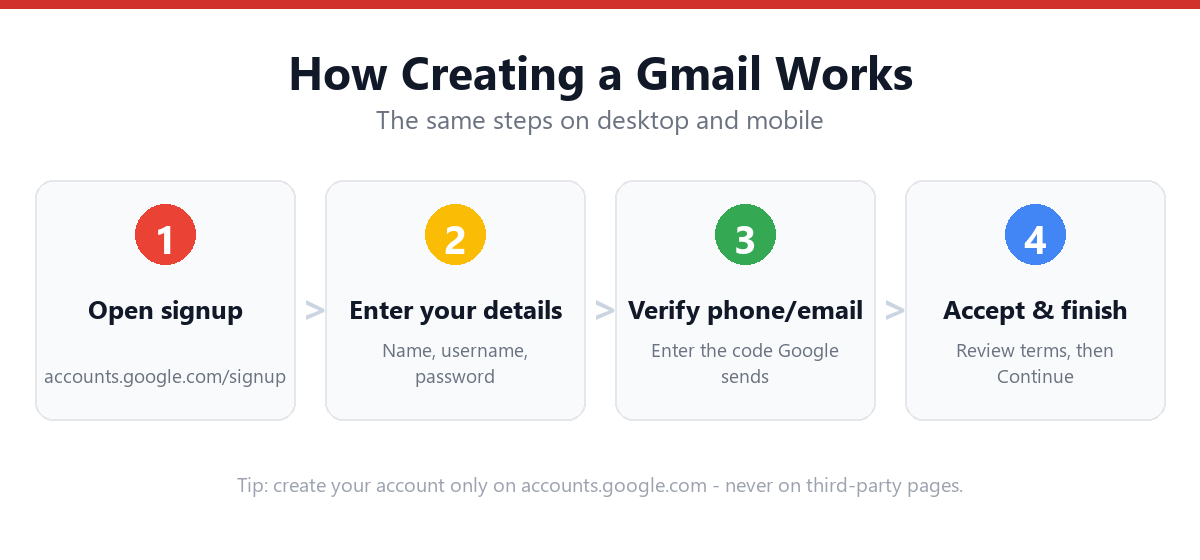
Go to accounts.google.com/signup. You'll pass through nine screens in this order: (1) choose "For my personal use", (2) enter your first and last name, (3) enter your date of birth and gender, (4) choose your @gmail.com address, (5) create a password, (6) add a phone number (this one is skippable), (7) add a recovery email (also skippable), (8) review your details, and (9) accept the Privacy and Terms. The whole thing takes about three minutes and no payment details are ever requested. The only screen most people get stuck on is screen 4, because common addresses are already taken.
- Nine screens, roughly three minutes start to finish.
- Screens 6 and 7 (phone, recovery email) can both be skipped.
- Screen 4 is where almost everyone stalls, so have two backup addresses ready.
- Your @gmail.com address is permanent; your display name is not.
- Google tests different screen orders, so yours may differ slightly. That's normal.
Which Screen Are You Stuck On?
If you're mid-signup right now, find the wording you're looking at and jump to it. You don't need to read from the top.
| The screen says… | That's screen | Most common problem here |
|---|---|---|
| "Choose your account type" / "For my personal use" | 1 | Picking "work or business" by mistake (the paid path) |
| "Create a Google Account" + First/Last name | 2 | None; this screen rarely fails |
| "Basic information" / date of birth | 3 | Age below the minimum blocks the account |
| "Choose your Gmail address" / "That username is taken" | 4 | The big one: your address is unavailable |
| "Create a strong password" | 5 | Passwords don't match, or too weak |
| "Add phone number" / "Verify your phone number" | 6 | Not receiving the code, or number rejected |
| "Add recovery email" | 7 | None, though read why you shouldn't skip it |
| "Review your account info" | 8 | Spotting a typo too late |
| "Privacy and Terms" | 9 | The agree button appears inactive until you scroll |
| Something else entirely | — | Your flow is a variant; see below |
How Long Does It Take, and What Do You Need?
Signup is short, but it stalls if you improvise partway through. Have these ready and it's a single unbroken run:
- Two or three address ideas, not one. Screen 4 rejects most first choices.
- A password you haven't used elsewhere. There's a checker at screen 5 below.
- Your date of birth. Google uses it to apply age-based settings, and it's awkward to correct later.
A phone number is useful but not required: screens 6 and 7 are both skippable. If you specifically want to avoid giving one, read creating a Gmail account without a phone number first, because the skip option isn't always shown.
What Does Each of the Nine Screens Ask?
Start at accounts.google.com/signup, or open gmail.com and click "Create account." If you are still deciding between providers, compare free Gmail and free Hotmail first.
Choose your account type
Choose "For my personal use." This is the free path and the one you want.
"For work or my business" leads to Google Workspace, which is a paid product for email on your own domain. It's the single most common wrong turn on this flow. If you later find yourself on a page quoting a per-user monthly price, you picked this option and should go back.
Enter your name
This is your display name, what recipients see in their inbox rather than your email address. Last name is optional in most regions.
Worth knowing: this is fully editable later, so don't overthink it. The thing you can't change is coming up on screen 4.
Basic information
Your date of birth determines which age-based settings and protections Google applies. Gender can be set to "Rather not say."
If you're blocked here: Google enforces a minimum age that varies by country (commonly 13, higher in some regions). An entered birth date below the local minimum stops the signup, and repeated attempts from the same device can lock the flow temporarily.
Choose your Gmail address
Google offers a couple of generated suggestions plus "Create your own Gmail address." This is the screen almost everyone stalls on, and it's the only irreversible choice in the whole flow. A @gmail.com address cannot be renamed later.
The rules: 6–30 characters, letters, numbers and periods only. No underscores, no hyphens, and it can't start or end with a period.
Why adding a dot doesn't rescue a taken name: Gmail ignores periods entirely. If johnsmith is taken, john.smith is the same address and equally unavailable. This surprises nearly everyone.
Patterns that actually still land: add a middle initial, add a meaningful number that isn't your birth year, or append a role or interest. If you're stuck in a loop here, the dedicated fix guide is "Username Not Available": what to do.
Create a strong password
Google's minimum is 8 characters. That minimum is not a recommendation. This password protects Drive, Photos, YouTube and, in practice, the reset link for most of your other accounts.
Test an idea here before you type it into Google's form. This runs entirely in your browser and sends nothing anywhere:
🔐 Test a password
Don't paste a password you already use elsewhere. Make up a new one for this account.
- • At least 12 characters (8 is Google's minimum)
- • A lowercase letter
- • An uppercase letter
- • A number
- • A symbol (! ? # $ …)
- • Not a common or obvious password
If the form won't accept it: the usual causes are the two fields not matching exactly, or a trailing space picked up from pasting.
Add phone number (skippable)
Despite how it looks, this is usually optional. Look for "Skip" beneath the field. Google surfaces it more insistently on some networks, devices and IP addresses than others.
Not receiving the code? Wait a full two minutes before requesting another, because repeated requests queue behind each other and can trigger a temporary block. If the number is rejected outright, it's usually already attached to the maximum number of Google accounts.
Full detail on avoiding this step: create a Gmail account without a phone number.
Add recovery email (skippable)
You can skip this, but this is the screen worth not skipping. An account with neither a phone number nor a recovery email has no route back if you forget the password, and Google's account-recovery process is notoriously unforgiving without one.
Any address from any provider works, including an old Outlook or Yahoo one.
Review your account info
Your last chance to catch a typo in the address before it's permanent. Read it once, character by character. Transposed letters in a name are easy to miss and impossible to fix afterwards.
Privacy and Terms
The agree button often looks disabled. It isn't. You have to scroll to the bottom of the terms box first, and on small screens the box scrolls independently of the page, which is why this step confuses people.
There's a "More options" link here worth a glance: it controls personalisation and ad settings, and it's easier to set now than to find later.
Click "I agree" and your inbox opens. The account is live immediately.
What If Your Screen Doesn't Match This Guide?
Google continuously tests variations of this flow, so two people signing up on the same day can see different screen orders. If yours doesn't line up, you haven't done anything wrong. The common variants:
| Variant you might see | What's happening | What to do |
|---|---|---|
| Name and birth date on one screen | Screens 2 and 3 merged | Fill both, continue as normal |
| Address chosen before your name | Screens reordered | Harmless; same fields, different order |
| No "Skip" under the phone field | Risk-based check on your network | Try another browser or network; see the phone-free guide |
| Asked to sign in instead of sign up | You're already signed into a Google account | Sign out, or use a private window |
| "This browser or app may not be secure" | Embedded or outdated browser | Use Chrome, Firefox, Edge or Safari directly |
| Flow restarts from the beginning | Session expired or cookies blocked | Enable cookies for google.com and start once, without pausing |
If the flow fails repeatedly from the same device, wait a day before trying again, because Google rate-limits new account creation per device and network, and continued attempts extend the block rather than clearing it.
What Happens Immediately After You Finish?
Your inbox opens straight away and the address is usable at once. Two things are worth doing in the first five minutes:
- Add a recovery method if you skipped screen 7Account settings → Security → Recovery email. This is the single most common reason people permanently lose a Google account.
- Turn on 2-Step VerificationFree, and the highest-value security setting available. Walkthrough here: Gmail 2-Step Verification.
For everything beyond the signup itself (storage limits, aliases, the dot trick, Gmail versus Outlook, connecting desktop mail apps), see the full Gmail account guide.
Frequently Asked Questions
How long does creating a Gmail account actually take?
About three minutes if you have an address idea and a password ready. The only screen that reliably adds time is screen 4, where most first-choice addresses turn out to be taken. Having two or three alternatives prepared is what keeps it to three minutes. If you get stuck there, the username availability guide has the patterns that still work.
Which steps can I skip?
Screens 6 and 7, the phone number and the recovery email, are both optional in most cases. Everything else is required. Skipping both is possible but leaves the account with no recovery route at all, which is a genuine risk rather than a theoretical one.
Why does it say my username is taken when I add a dot?
Gmail ignores periods completely. john.smith@gmail.com and johnsmith@gmail.com deliver to the same inbox, so a dot cannot free up an address someone already holds. You need a genuinely different username: a middle initial, a number, or a role word.
My signup screens are in a different order. Did I do something wrong?
No. Google runs variations of the signup flow, so screens 2 and 3 are sometimes merged and the address step occasionally comes earlier. The fields themselves are the same. Only worry if a screen asks for payment details, which the personal signup never does.
The "I agree" button looks greyed out. Is it broken?
It's almost always waiting for you to scroll to the bottom of the terms box. On phones that box scrolls independently of the page, so scrolling the page does nothing. Scroll inside the box itself and the button activates.
Can I change my Gmail address after finishing?
No. The @gmail.com address chosen on screen 4 is permanent. Your display name from screen 2 can be changed freely at any time. If you truly need a different address, you create a new account and forward the old mail across.
Is the process different on a phone?
No. The same nine screens in the same order, just a narrower layout. The Gmail app, a mobile browser, and Android's Settings → Accounts → Add account all lead into the identical flow. There's no separate mobile procedure.
Do I need to pay at any point?
No. The personal signup never requests payment details. If you reach a screen quoting a monthly per-user price, you selected "For work or my business" on screen 1, which leads to Google Workspace. Go back and choose "For my personal use."
Sources & Official References
This guide reflects Google's current signup flow. For account-specific actions, always use the official tools:
- Create a Google AccountOfficial Google account signup page.
- Create a Gmail accountOfficial Gmail account creation help.
- Google username rulesOfficial username requirements.
- Google Security SettingsAdd recovery options and 2-Step Verification.
Why You Can Trust This Guide
Iris Publishers' editorial team produces plain-English account help guides. Every step is verified against the provider's official process and updated when the interface changes.
- Independently written: not affiliated with, endorsed by, or sponsored by Google.
- Reviewed for accuracy by our editorial team before publishing and at each update.
- No credentials collected. Always sign in on the provider's official pages.
- Google varies this flow, so screen order and wording may differ slightly from the sequence described here.
- Last reviewed: .