Gmail Login: Complete Guide to Sign In
Everything you need to log in to Gmail — on desktop or mobile — plus how to fix login errors, recover a forgotten password, set up 2-Step Verification, and manage multiple Google accounts.
To log in to Gmail, go to gmail.com or accounts.google.com, enter your full Gmail address (e.g., yourname@gmail.com), then enter your password. If 2-Step Verification is enabled, you'll confirm a prompt on your phone, a code from your authenticator app, or a security key.
- Your Gmail login is your Google Account — it unlocks Drive, YouTube, Photos and more.
- The sign-in steps are identical on desktop and mobile: address → Next → password → verify.
- Most login failures are fixed by clearing cache, using incognito, or resetting your password.
- Turn on 2-Step Verification and save backup codes to avoid being locked out.
Is My Gmail Sign-In Page Safe? (Phishing Checker)
Fake "Gmail login" pages are a top way accounts get stolen. Before you type your password, paste the address you're about to sign in on — this tool flags whether it's a genuine official domain or a likely impostor. It runs entirely in your browser.
🛡️ Check a sign-in URL
Paste the full address from your browser's address bar.
Official Gmail domains include gmail.com, accounts.google.com, myaccount.google.com. If unsure, close the page and type the official address yourself.
Interactive Login Troubleshooter
Pick what's happening for an instant, targeted fix — or scan the troubleshooting table further down.
🔧 What's going wrong?
Understanding Your Gmail / Google Account
Your Gmail login is the same as your Google account login. This single sign-in gives you access to:
- Gmail
- Google Drive
- Google Calendar
- Google Photos
- YouTube
- Google Play
- Google Workspace (business accounts)
This is why, after logging in once on a device or browser, you're often automatically signed into all these services at the same time.
How to Log In to Gmail (Step-by-Step)
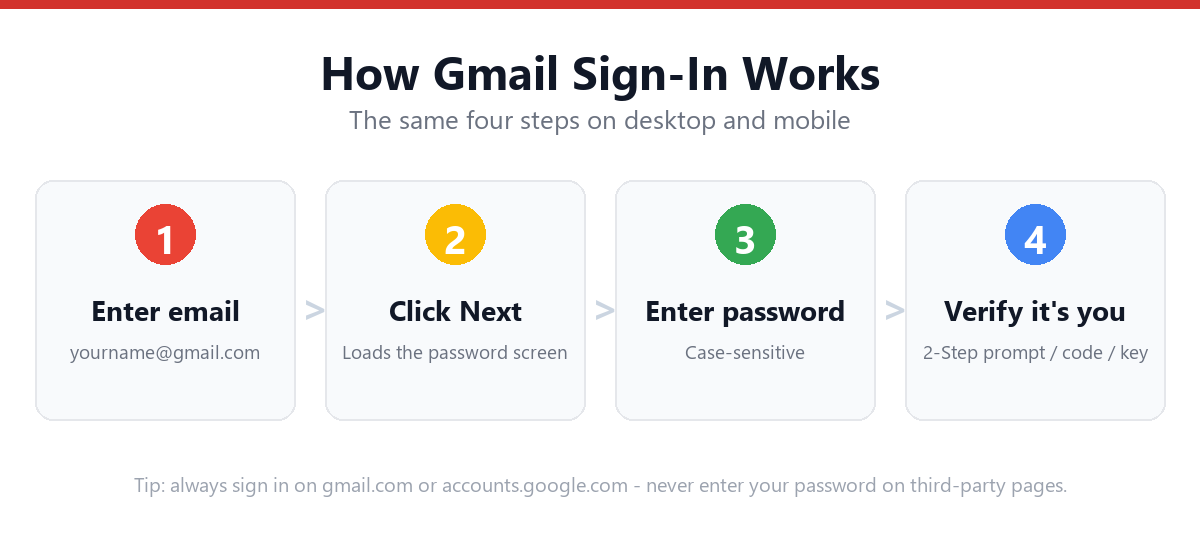
Desktop / Web Browser
- Go to gmail.com or accounts.google.comOpen your browser and navigate to either address.
- Enter your full Gmail addressType your complete address, e.g., yourname@gmail.com.
- Click NextThis confirms your account exists and loads the password screen.
- Enter your passwordType your password carefully — it's case-sensitive.
- Click Next againSubmit your credentials to proceed.
- Complete 2-Step Verification if enabledApprove a phone prompt, enter a code, or use a security key.
- Choose your sign-in preferencesYou can stay signed in or sign in to a new browser profile, depending on the device.
Gmail Login on Mobile (iPhone & Android)
Option 1: Gmail App (Recommended)
- Open the Gmail appPre-installed on most Android phones; available on the App Store for iPhone.
- Tap your profile icon or "Add account"This opens the account management screen.
- Select "Google" as the account typeThen enter your Gmail address.
- Enter your passwordComplete 2-Step Verification if prompted.
- Grant sync permissionsAllow the app to sync mail, contacts, and calendar as desired.
Option 2: Mobile Browser
- Open your mobile browserChrome, Safari, or your default browser.
- Go to gmail.comYou'll be redirected to the sign-in page if not already logged in.
- Enter your credentialsSame process as desktop.
Managing Multiple Gmail Accounts
Google allows you to sign in to multiple accounts simultaneously and switch between them without fully logging out.
| Platform | How to Add/Switch Accounts |
|---|---|
| Desktop Browser | Click your profile picture (top-right) → "Add another account" → sign in with the new account. Switch via the same profile menu. |
| Gmail App (Mobile) | Tap your profile icon → "Add another account" → follow sign-in steps. Switch by tapping the profile icon and selecting the account. |
| Browser Profiles (Chrome) | For complete separation (cookies, history, extensions), create separate Chrome profiles for each account. |
Setting Up 2-Step Verification for Gmail
2-Step Verification adds a second layer of security beyond your password — even if someone learns your password, they can't access your account without the second factor.
How to Enable 2-Step Verification
- Go to myaccount.google.comSign in with your Gmail credentials.
- Click "Security" in the left menuThis section manages all sign-in security options.
- Select "2-Step Verification"Then click "Get Started."
- Verify your passwordYou may be asked to re-enter it for security.
- Choose your second stepGoogle prompt on your phone (easiest), authenticator app codes, SMS, or a physical security key.
- Turn on 2-Step VerificationConfirm to activate it.
- Save backup codesGenerate and store backup codes in case you lose access to your primary method.
For full setup details and troubleshooting, see: Gmail 2-Step Verification Setup Guide
Troubleshooting Gmail Login Issues
If you're having trouble signing in, start with this quick diagnostic table:
| Symptom | Likely Cause | Quick Fix |
|---|---|---|
| "Wrong password" despite correct entry | Caps Lock, typo, or recently changed password | Reset your password |
| "Couldn't sign you in" / account locked | Suspicious activity flagged by Google | See our account recovery guide |
| Stuck on a loading screen / login loop | Browser cache, cookies, or extension conflict | Clear cache, try incognito mode, disable extensions |
| 2-Step Verification prompt not arriving | Phone offline, notifications disabled, or no internet | Use backup codes or try SMS instead |
| "This browser or app may not be secure" | Outdated browser or third-party app with weak security | Update browser, or use "Sign in with Google" instead of entering credentials directly |
| Signed into wrong account automatically | Multiple Google accounts saved in browser | Use account switcher or incognito window |
General Fixes That Solve Most Login Problems
- Clear your browser cache and cookiesEspecially after a recent password change.
- Try a private/incognito windowRules out extension or cache conflicts.
- Disable browser extensions temporarilyEspecially ad blockers and password managers.
- Check Caps LockPasswords are case-sensitive.
- Update your browser or the Gmail appOutdated software can trigger security warnings.
- Check Google's service statusVisit Google Workspace Status Dashboard for outages.
For a complete list of fixes by exact error message, see: Gmail Login Not Working — Full Fix List
Forgot Your Gmail Password?
Go directly to our step-by-step recovery guide: How to Reset Your Gmail Password
Locked Out or Account Compromised?
Google sometimes restricts access automatically due to:
- Unusual sign-in activity (new location, new device)
- Too many failed login attempts
- Suspected unauthorized access
For full recovery steps — including options if you've lost access to your recovery phone or email — see: Gmail Account Recovery Guide
Frequently Asked Questions
Is my Gmail login the same as my Google account?
Yes. Your Gmail address and password are your Google account credentials, used across Gmail, Drive, YouTube, Photos, Calendar, and other Google services.
Why does Google keep asking me to verify it's me?
This is Google's security system detecting a sign-in from a new device, browser, or location. Completing the verification confirms it's really you and may reduce future prompts on that device.
Can I use Gmail without 2-Step Verification?
Yes, 2-Step Verification is optional, though Google strongly recommends it and may enable it automatically for accounts it considers higher-risk. You can turn it off in your Google Account security settings if it was previously enabled.
Why am I stuck in a Gmail login loop?
This is usually caused by browser cookies, cached login data, or a conflicting saved account. Clear your browser cache, try an incognito window, or use "Use another account" on the sign-in page.
How do I log into Gmail on a shared or public computer?
Use a private/incognito browser window, and make sure to click "Sign out" from your profile menu (not just close the tab) when finished. Avoid staying signed in on shared devices.
Can I have multiple Gmail accounts open at the same time?
Yes. Click your profile picture in the top-right corner and select "Add another account." You can then switch between accounts using the same menu without fully signing out.
Sources & Official References
This guide is written to match Google's current sign-in flow. For account-specific actions, always use Google's official tools:
- Google Help: Sign in to GmailOfficial Gmail sign-in instructions from Google Support.
- Google Account: Turn on 2-Step VerificationOfficial 2-Step Verification setup documentation.
- Google Account RecoveryOfficial recovery flow for locked or forgotten accounts.
- Google Workspace Status DashboardLive service status for Gmail and Google services.
Why You Can Trust This Guide
Iris Publishers' editorial team produces plain-English guides for everyday email and account tasks. Every step in this article is verified against Google's official sign-in flow and updated when Google changes its interface.
- Independently written — we are not affiliated with, endorsed by, or sponsored by Google.
- Reviewed for accuracy by our editorial team before publishing and at each update.
- No credentials collected — we never ask for your password; always sign in on Google's own pages.
- Last reviewed: .