How to Create a Gmail Account on Mobile
You can create a Gmail/Google account entirely from your phone — through the Gmail app, your device's account settings, or your mobile browser. Here's the full walkthrough for each method.
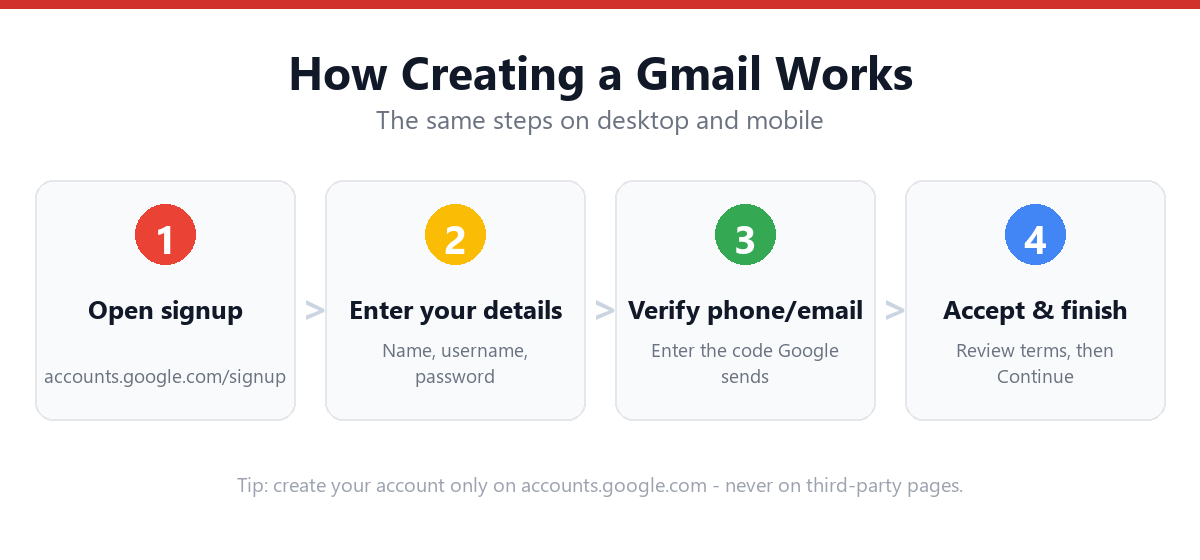
On Android, go to Settings → Accounts → Add account → Google → Create account. On iPhone, open the Gmail app, tap "Sign in," then "Create account." Both paths walk you through the same steps: name, Gmail address, password, recovery info, and verification.
- Android: Settings → Accounts → Add account → Google → Create account.
- iPhone: open the Gmail app → Sign in → Create account.
- Every path uses the same steps: name, address, password, recovery, verify.
- The mobile browser also works if you'd rather not use the app.
Method 1: Via Android Settings (Recommended for Android)
Adding a Google account through your phone's Settings integrates it across all apps — not just Gmail.
- Open your phone's Settings appThe gear icon in your app drawer or notification shade.
- Tap "Accounts" or "Accounts and Backup"Location varies slightly by Android version and manufacturer.
- Tap "Add account" → "Google"This opens the Google sign-in flow.
- Tap "Create account" → "For myself"Choose "For work or my business" if setting up a Google Workspace account.
- Enter your name, choose a Gmail address, and create a passwordFollow the on-screen prompts for each step.
- Add recovery info and complete verificationPhone number and/or recovery email (optional but recommended).
- Review and accept Google's termsThe account is created and synced across your phone.
Method 2: Via the Gmail App (iPhone & Android)
- Download the Gmail appAvailable free from the App Store (iPhone) or pre-installed on most Android phones.
- Open the Gmail appIf it's freshly installed, you'll see a welcome/sign-in screen.
- Tap "Sign in" → "Google"On the account type selection screen.
- Tap "Create account" → "For myself"This starts the new account signup flow.
- Enter your first and last name, choose a Gmail address, and set a passwordGoogle will confirm availability of your chosen address in real time.
- Add a phone number or recovery email if promptedOptional — look for a "Skip" option if you'd prefer to proceed without.
- Enter your birth date and genderBirth date is required.
- Accept Google's termsAccount is created and the inbox opens in the Gmail app.
Method 3: Mobile Browser
- Open Safari or Chrome on your phone
- Go to accounts.google.com/signup
- Follow the standard signup stepsSame as desktop — name, username, password, recovery, terms.
Which Method Is Best?
| Method | Best For | Notes |
|---|---|---|
| Android Settings | Android users wanting full system integration | Account syncs across all apps automatically |
| Gmail App | iPhone users or those who primarily use Gmail | Inbox opens immediately after signup |
| Mobile Browser | Anyone who wants the most flexibility | May show phone skip option more readily |
Frequently Asked Questions
Can I create a Gmail account on my phone without downloading the app?
Yes — go to accounts.google.com/signup in your mobile browser (Safari, Chrome, or your default browser) for a full signup experience without installing the Gmail app. On Android, you can also use the built-in Accounts section in your phone's Settings.
Will my Gmail account work across all my devices once created on mobile?
Yes — a Google/Gmail account is cloud-based, not device-specific. Once created, you can sign in from any device (phone, tablet, computer) using the same email address and password.
Why does Google require more verification steps on mobile than desktop sometimes?
Google's automated systems assess risk signals differently across device types and networks. Mobile data connections or recently used SIM cards sometimes trigger additional verification, while a personal device with prior Google activity may encounter fewer steps.
Can I add multiple Gmail accounts to my phone after signup?
Yes — on Android, repeat the Settings → Accounts → Add account → Google flow for each additional account. On iPhone, add further accounts through the Gmail app by tapping your profile icon → "Add another account."
Sources & Official References
This guide reflects the provider’s current process. For account-specific actions, always use the official tools:
- Google Help: Sign in to GmailOfficial Gmail sign-in instructions from Google.
- Create a Google AccountOfficial steps to create a new Google/Gmail account.
- Turn on 2-Step VerificationOfficial 2-Step Verification setup guide.
- Google Account RecoveryOfficial recovery flow for locked or forgotten accounts.
Why You Can Trust This Guide
Iris Publishers’ editorial team produces plain-English account help guides. Every step is verified against the provider’s official process and updated when the interface changes.
- Independently written — not affiliated with, endorsed by, or sponsored by Google.
- Reviewed for accuracy by our editorial team before publishing and at each update.
- No credentials collected — always sign in on the provider’s official pages.
- Last reviewed: .