Gmail 2-Step Verification: Setup Guide & Troubleshooting
2-Step Verification is the single most effective way to protect your Gmail account. Here's how to set it up, choose the right method for you, and fix common issues if it stops working.
To set up 2-Step Verification, go to myaccount.google.com → Security → 2-Step Verification, click "Get Started," and choose your method — a Google prompt on your phone is the easiest, but you can also use an authenticator app, SMS codes, or a physical security key. Always save your backup codes afterward.
- Set it up at myaccount.google.com → Security → 2-Step Verification.
- A Google phone prompt is easiest; authenticator, SMS, or a security key also work.
- Always save your backup codes before you finish.
- A physical security key gives the strongest, phishing-resistant protection.
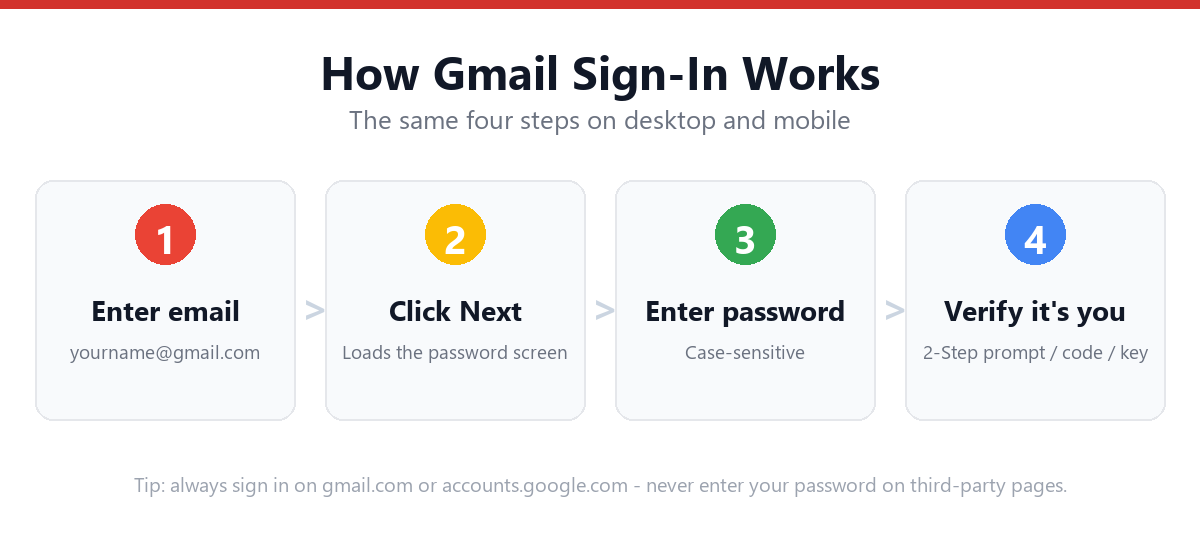
Why Enable 2-Step Verification?
With 2-Step Verification enabled, even if someone learns your password (through a data breach, phishing, or guessing), they still can't access your account without your second factor — your phone, authenticator app, or security key.
Google reports that accounts with 2-Step Verification are significantly less likely to be successfully compromised compared to password-only accounts.
How to Set Up 2-Step Verification
- Go to myaccount.google.comSign in with your Gmail credentials.
- Click "Security" in the left-hand menuThis section manages all sign-in security options.
- Select "2-Step Verification" and click "Get Started"You may be asked to re-enter your password.
- Choose your primary methodSee the comparison table below for options.
- Complete the setup for your chosen methodThis may involve scanning a QR code, confirming a phone number, or registering a security key.
- Turn on 2-Step VerificationConfirm to activate.
- Generate and save backup codesUnder "Backup codes," generate a set and store them somewhere safe (not on the device you're securing).
Choosing a 2-Step Verification Method
| Method | How It Works | Best For | Drawback |
|---|---|---|---|
| Google Prompt | Tap "Yes" on a notification sent to your phone | Most users — fastest, easiest | Requires phone with internet/data |
| Authenticator App | Enter a rotating 6-digit code from an app (e.g., Google Authenticator) | Works offline, more secure than SMS | Lose the device = need backup codes |
| SMS / Voice Call | Receive a code via text or automated call | Backup option, simple phones | Vulnerable to SIM-swap attacks; needs signal |
| Security Key | Physical USB/NFC/Bluetooth device you tap or insert | Highest security, journalists/high-risk users | Cost of hardware, can be lost |
| Backup Codes | Pre-generated one-time codes, used when other methods fail | Emergency fallback for everyone | Must be stored securely in advance |
Troubleshooting 2-Step Verification Issues
| Issue | Fix |
|---|---|
| Google Prompt not arriving | Check phone has internet connection and notifications enabled for the Google app; try SMS as a fallback |
| Authenticator app codes "invalid" | Check your phone's time/date is set to automatic — authenticator codes are time-based and drift causes mismatches |
| Lost phone with authenticator app | Use a backup code, or use another trusted device to sign in and reconfigure 2-Step Verification |
| No backup codes saved and locked out | Use Google's account recovery process at g.co/recover, which has separate verification paths |
| SMS codes delayed | Wait a few minutes for retry, or switch to Google Prompt/authenticator app if available |
If you're locked out entirely and have no working 2FA method or backup codes, see: Gmail Account Recovery Guide
Frequently Asked Questions
What happens if I lose my phone with 2-Step Verification enabled?
Use a backup code (if you saved one) to sign in, then update your 2-Step Verification settings with your new device. If you don't have backup codes, use Google's account recovery process at g.co/recover, which offers alternative verification paths.
Is SMS-based 2-Step Verification safe?
SMS is better than no 2-Step Verification at all, but it's considered less secure than authenticator apps or security keys because SMS can potentially be intercepted via SIM-swap attacks. Google recommends using SMS as a backup rather than your primary method when possible.
Can I turn off 2-Step Verification once it's enabled?
Yes, go to myaccount.google.com, then Security, then 2-Step Verification, and select "Turn off." However, this is not recommended, as it significantly reduces your account's protection against unauthorized access.
How many backup codes does Google give me, and what if I use them all?
Google typically generates a set of 8-10 backup codes, each usable once. If you use them all, return to the 2-Step Verification settings page and generate a new set — generating new codes invalidates any unused old ones.
Sources & Official References
This guide reflects the provider’s current process. For account-specific actions, always use the official tools:
- Google Help: Sign in to GmailOfficial Gmail sign-in instructions from Google.
- Create a Google AccountOfficial steps to create a new Google/Gmail account.
- Turn on 2-Step VerificationOfficial 2-Step Verification setup guide.
- Google Account RecoveryOfficial recovery flow for locked or forgotten accounts.
Why You Can Trust This Guide
Iris Publishers’ editorial team produces plain-English account help guides. Every step is verified against the provider’s official process and updated when the interface changes.
- Independently written — not affiliated with, endorsed by, or sponsored by Google.
- Reviewed for accuracy by our editorial team before publishing and at each update.
- No credentials collected — always sign in on the provider’s official pages.
- Last reviewed: .