Forgot Your Gmail Password? Here's How to Reset It
Google offers several ways to verify it's really you when resetting your password — from a simple phone prompt to answering questions about your account history.
Go to the Gmail sign-in page and click "Forgot password?" Google will guide you through verification using your recovery phone, recovery email, or a previous password you remember. If none of these work, select "Try another way" repeatedly to see all available verification options for your account.
- Click "Forgot password?" on the Gmail sign-in screen.
- Verify via recovery phone, recovery email, or a password you remember.
- Use "Try another way" to see every available verification option.
- Add a recovery phone and email now to avoid future lockouts.
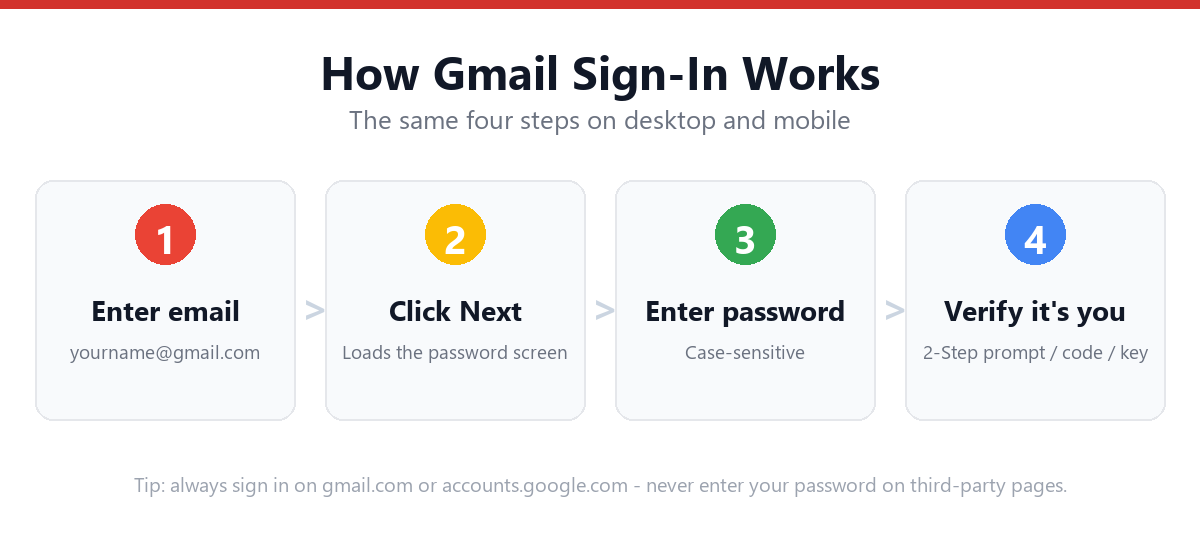
Standard Password Reset
- Go to the Gmail sign-in pageVisit gmail.com or accounts.google.com.
- Enter your email address, then click "Forgot password?"This link appears below the password field.
- Try entering your last remembered passwordIf you recently changed it, Google may ask you to confirm your previous password first — enter your best guess even if unsure.
- Choose a verification methodGoogle will offer options based on what's linked to your account: a tap confirmation on a trusted device, a code to your recovery phone, or a code to your recovery email.
- Complete the verificationFollow the prompt for whichever method you select.
- Create a new passwordChoose a strong, unique password — Google will confirm once it's updated.
No Access to Recovery Phone or Email?
If you can't complete any of the standard verification methods, Google's account recovery form asks additional questions to verify ownership:
- Click "Try another way" until you see "I don't have any of these"Or a similar option indicating no access to listed recovery methods.
- Provide an alternate contact emailEnter an email address Google can use to follow up with you about the recovery — this doesn't need to be linked to the account.
- Answer questions about your accountThis may include: approximately when you created the account, other email addresses you've used to sign in, devices you've used, and labels/folders you've created in Gmail.
- Be as accurate as possibleGoogle compares your answers against account history — vague or incorrect answers reduce the chance of approval.
- Wait for Google's responseYou'll be contacted at the alternate email you provided, typically within a few hours to a few days.
How to Avoid This Next Time
- Add or update a recovery phone number — go to myaccount.google.com → Security → Recovery phone
- Add a recovery email address — under the same Security section
- Set up 2-Step Verification with a trusted device — this provides a fast, simple recovery prompt
- Periodically check your account recovery info is current — especially after changing phone numbers
For full setup steps, see: Gmail 2-Step Verification Setup Guide
Frequently Asked Questions
What if I don't remember any of my previous passwords?
You can skip the "enter previous password" step by clicking "Try another way" to move on to other verification methods, such as a recovery phone code, recovery email code, or trusted device prompt.
How long does Gmail account recovery take without a recovery phone or email?
This varies — some requests are resolved within a few hours, while others, especially those requiring manual review, can take a few days. Providing accurate, detailed answers about your account history improves your chances of a faster resolution.
Can I reset my Gmail password from the mobile app?
Yes — tap "Forgot password?" on the sign-in screen within the Gmail or Google app, and you'll go through the same verification flow as on desktop.
Why does Google ask for an alternate email during recovery?
If your account's existing recovery methods (phone/email) are inaccessible, Google needs a way to contact you about the outcome of your recovery request. This alternate email doesn't need to be linked to the account — it's just a contact point for Google's response.
Sources & Official References
This guide reflects the provider’s current process. For account-specific actions, always use the official tools:
- Google Help: Sign in to GmailOfficial Gmail sign-in instructions from Google.
- Create a Google AccountOfficial steps to create a new Google/Gmail account.
- Turn on 2-Step VerificationOfficial 2-Step Verification setup guide.
- Google Account RecoveryOfficial recovery flow for locked or forgotten accounts.
Why You Can Trust This Guide
Iris Publishers’ editorial team produces plain-English account help guides. Every step is verified against the provider’s official process and updated when the interface changes.
- Independently written — not affiliated with, endorsed by, or sponsored by Google.
- Reviewed for accuracy by our editorial team before publishing and at each update.
- No credentials collected — always sign in on the provider’s official pages.
- Last reviewed: .